Installing Sigma Vision is one flow with two surfaces: the desktop app, and the browser setup page it opens. Windows and Mac share sign-in, plan, device password, and activation. Mac adds onboarding for Accessibility and Screen Recording. It is not an iPhone or Android app. After it is running: how Sigma Vision works.
What you need
- A Windows PC or a Mac. Not a phone.
- An account at app.sigmaio.sk.
- On a family computer: a standard (non-admin) account for the person being protected. See parental controls on a shared family computer.
Step 1: Install the desktop app
Download Sigma Vision from the dashboard for the computer you want to protect.
- Windows: run the installer
.exe. - Mac: open the
.dmgand drag SigmaVision to Applications, or run the.pkg.
On first launch the app registers itself to start at login. macOS asks for the administrator password once. That prompt is required: without it the app quits instead of running unprotected. Windows has no equivalent prompt here.
Step 2: Sign in from the app
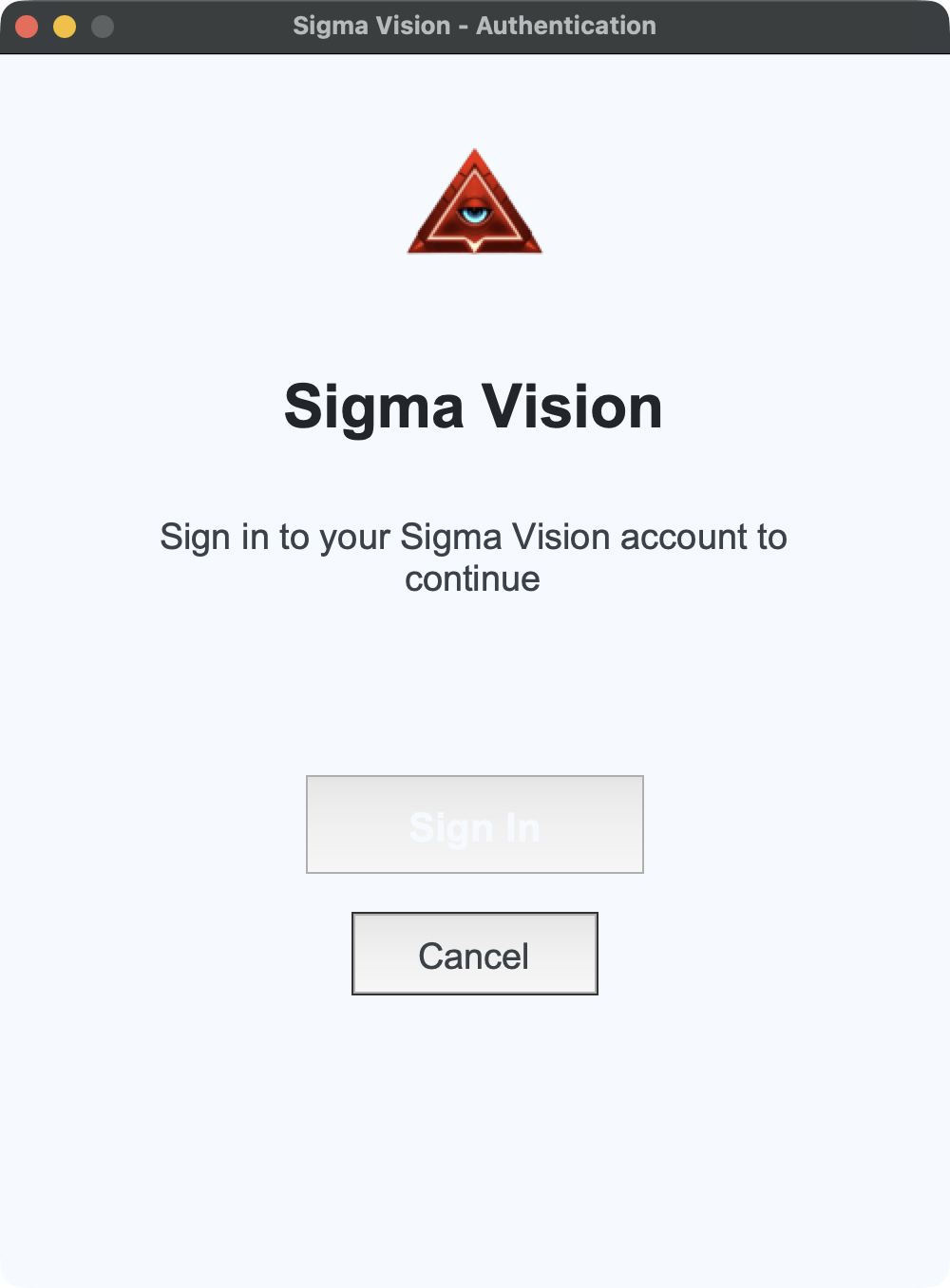
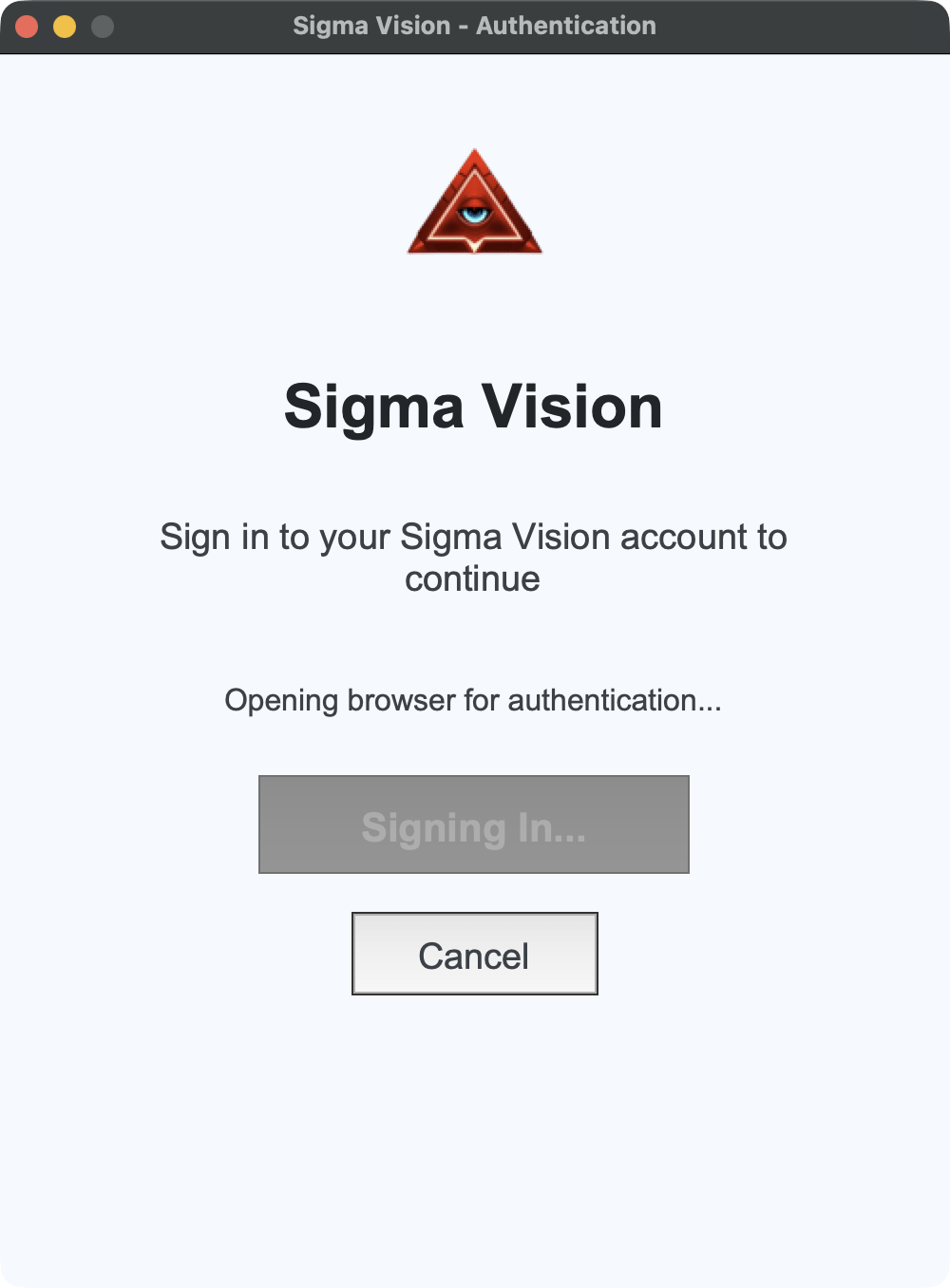
The app opens its sign-in window and waits. Press Sign In. It opens your browser on the setup page. Leave the desktop window open.
Step 3: Sign in on the web
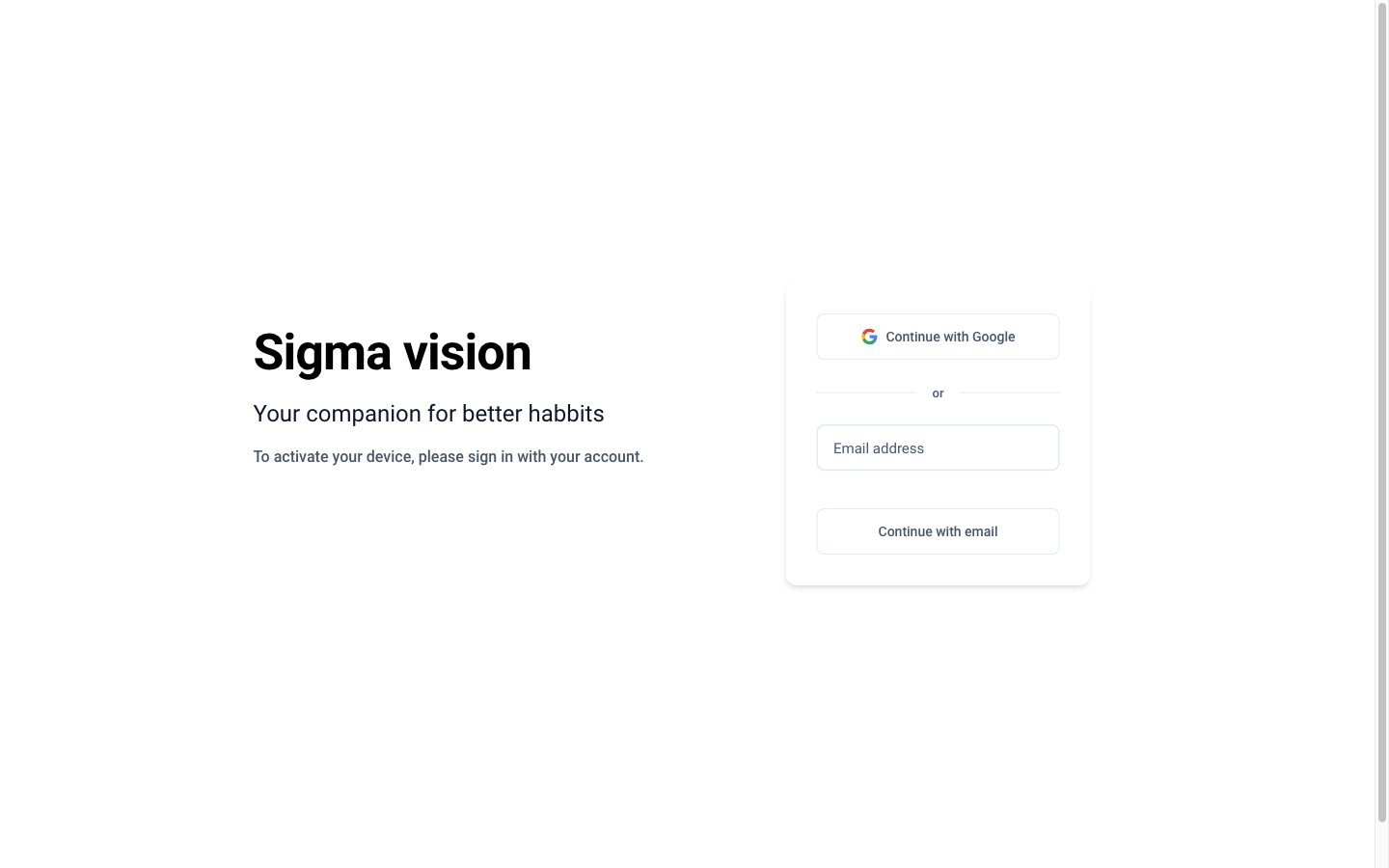
This is the browser half. Continue with Google, or enter your email. A known email asks for your password. A new email gets a sign-in link: you do not pick a password on that path.
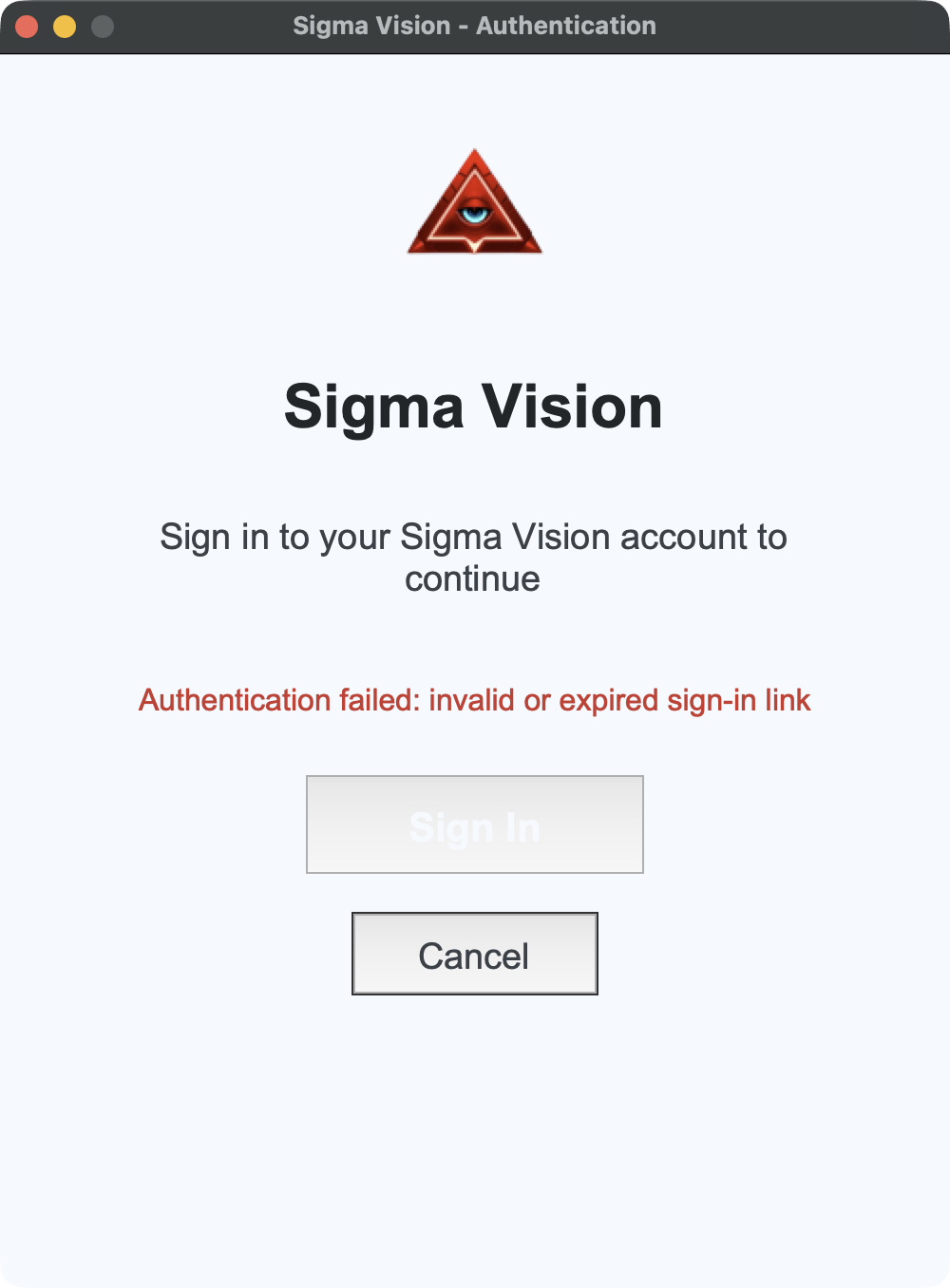
If the app shows Authentication failed: invalid or expired sign-in link, start Sign In again and use a fresh link.
Step 4: Choose a plan (web, only if needed)
Only on the first device, or after a plan expires. Each plan sets how many computers you can protect. Current plans: Starter, Family, and Pro, from 3,99 €/month. Payment goes through Stripe and returns you to setup.
If every device slot on the plan is already used, activation is refused. Remove an old device on the dashboard first, then try again. Skip this step if you already have an active plan with a free slot.
Step 5: Set a device password and activate (web)
Still in the browser. The device password is what you will need later to deactivate this computer or change its settings on the dashboard. On a child’s computer, pick something they do not know. Minimum 6 characters. Press Activate Device.
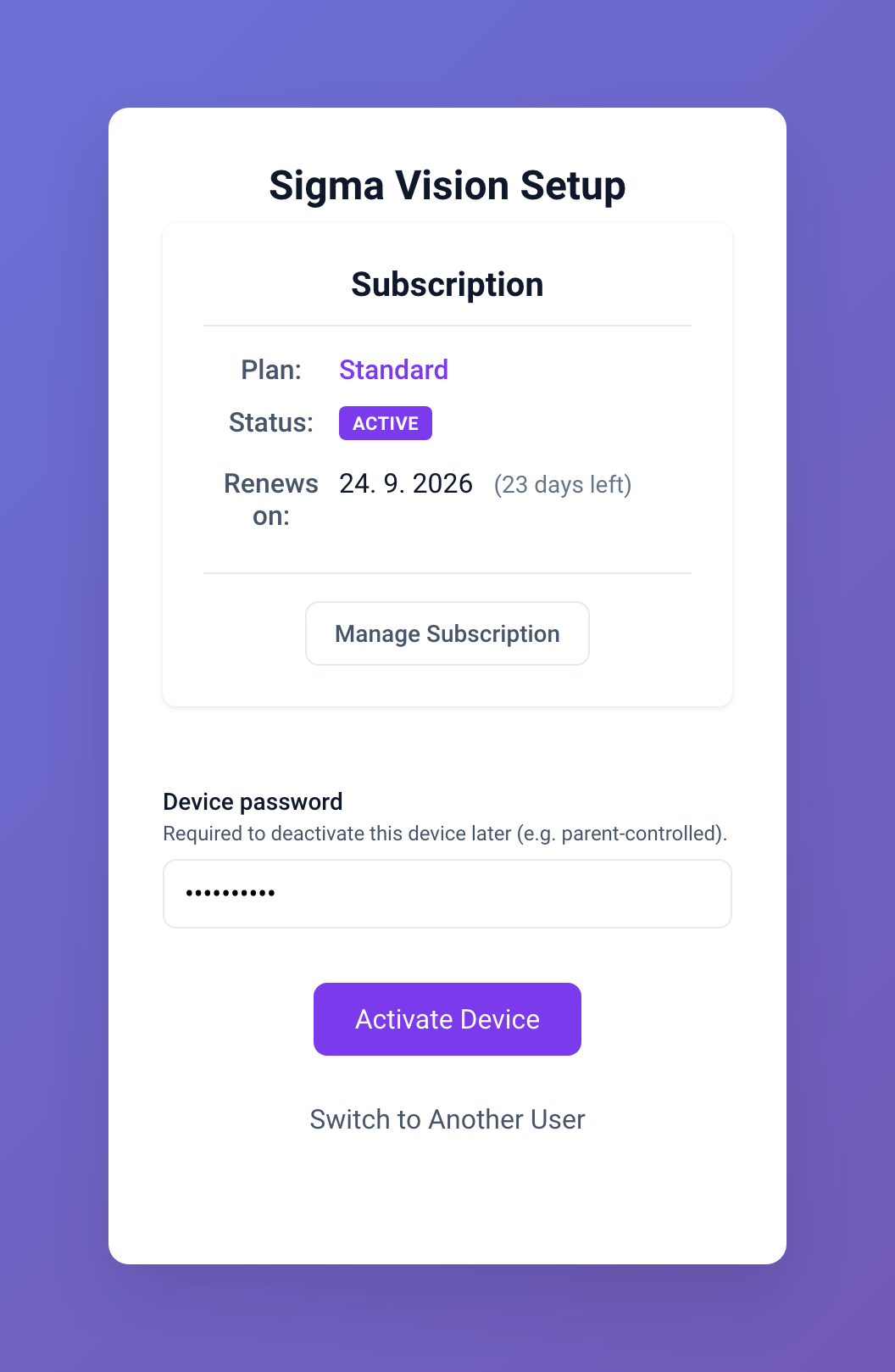
Step 6: Back to the desktop app
After Activate Device, the browser usually hands you back to the app automatically. No typing.
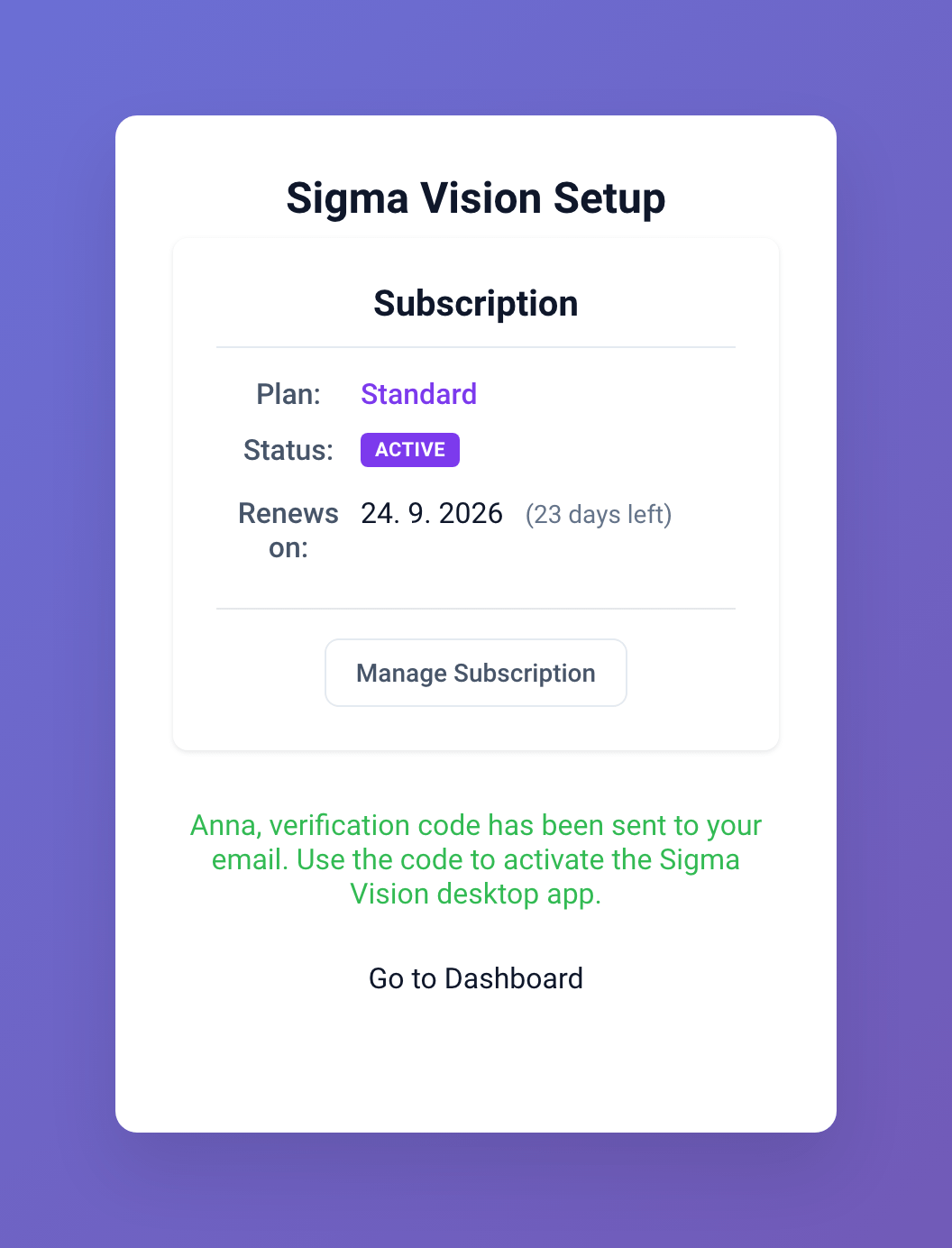
If the browser cannot open the app (some browsers block that return), the app asks for the 6-digit code instead. The code also arrives by email. It is valid for 5 minutes. If the email is slow, the setup page shows the code after about ten seconds: use Click to copy, paste it in the app, then Submit Code.
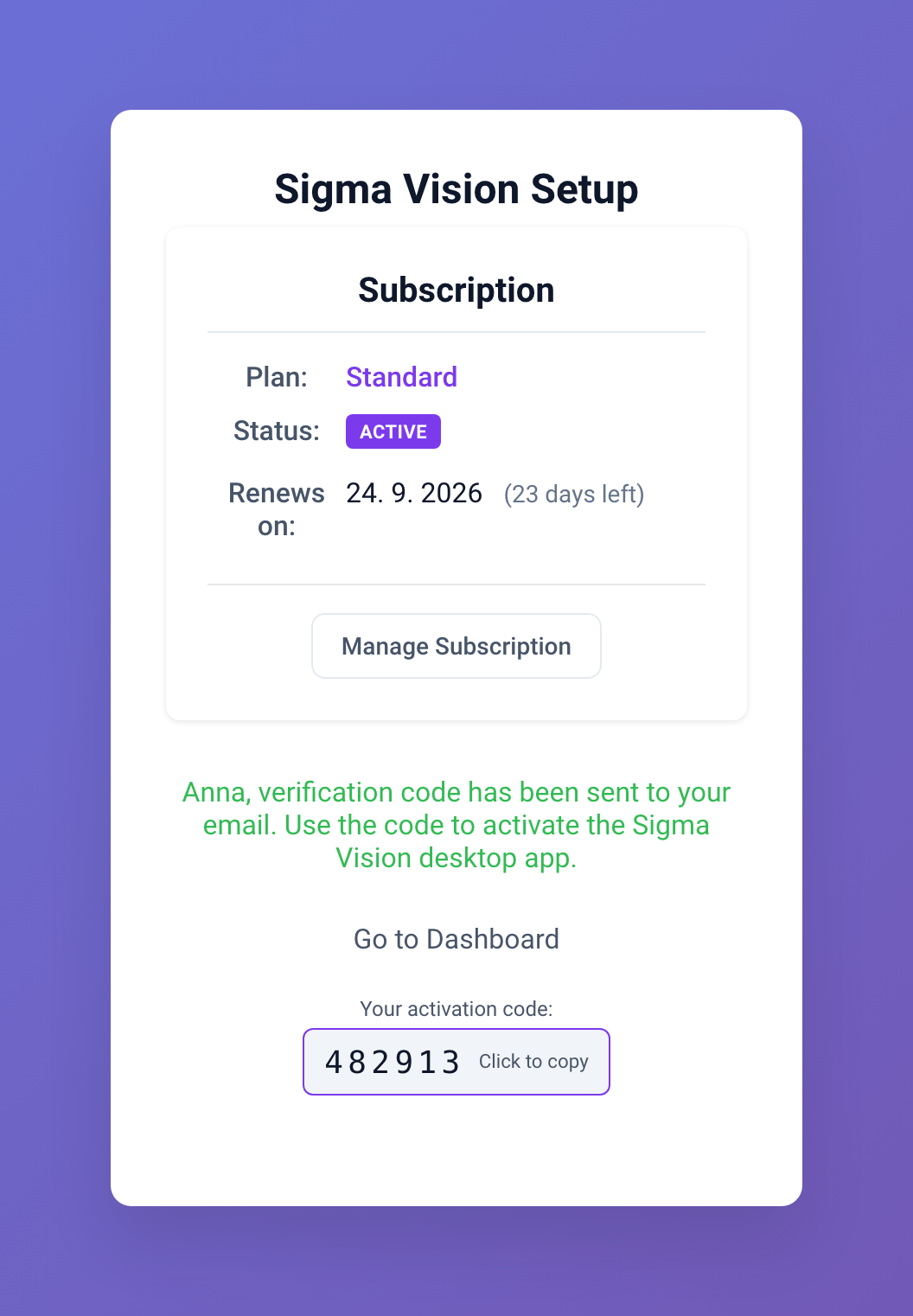
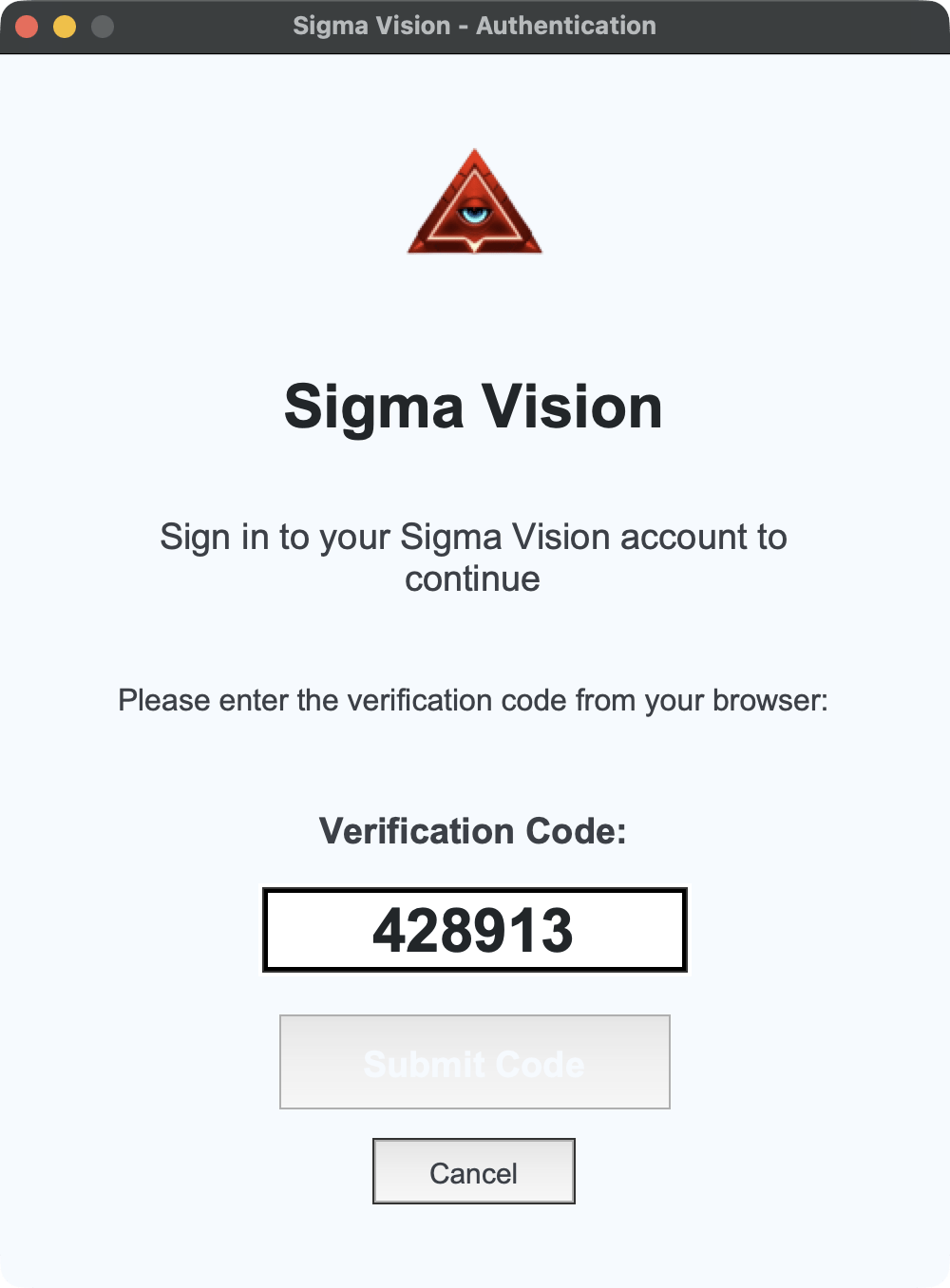
The app then checks account, subscription, and a free device slot. All three must pass. If any fails, it signs out and shows the sign-in window again: usually an inactive plan, or no slots left.
The device then shows as ACTIVE on the dashboard.
Mac only: onboarding
Windows users skip this section. Windows needs no permission step. On Mac, the on-screen AI and lockout need Accessibility and Screen Recording (the app labels it ScreenCapture). Until both are on, detection stays off.
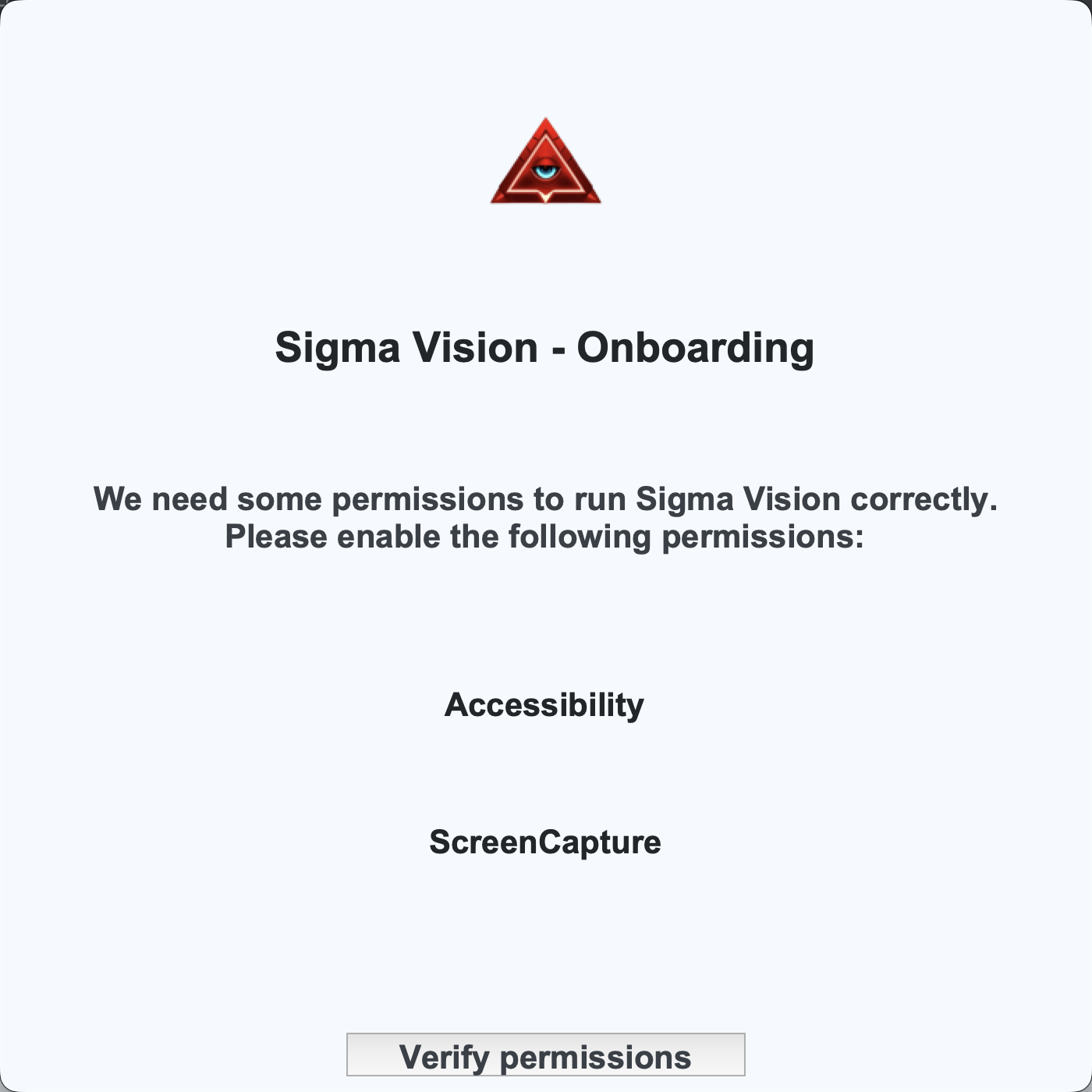
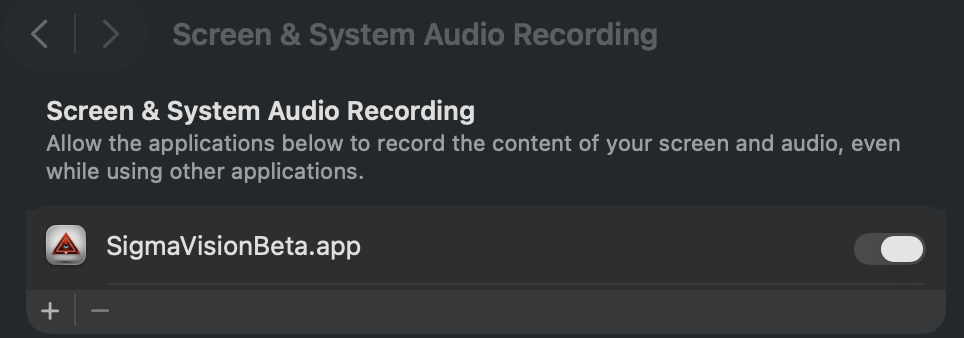
Turn the switch on for SigmaVision. System Settings may list it as SigmaVisionBeta.app.
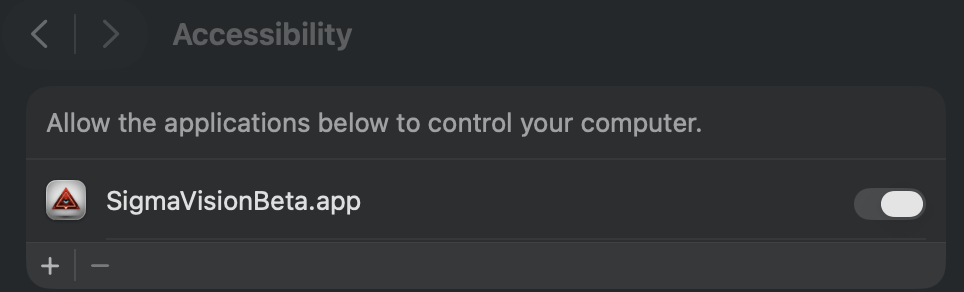
Press Verify permissions. If only one is granted, onboarding shows a check and an X. Fix the missing toggle, then verify again.
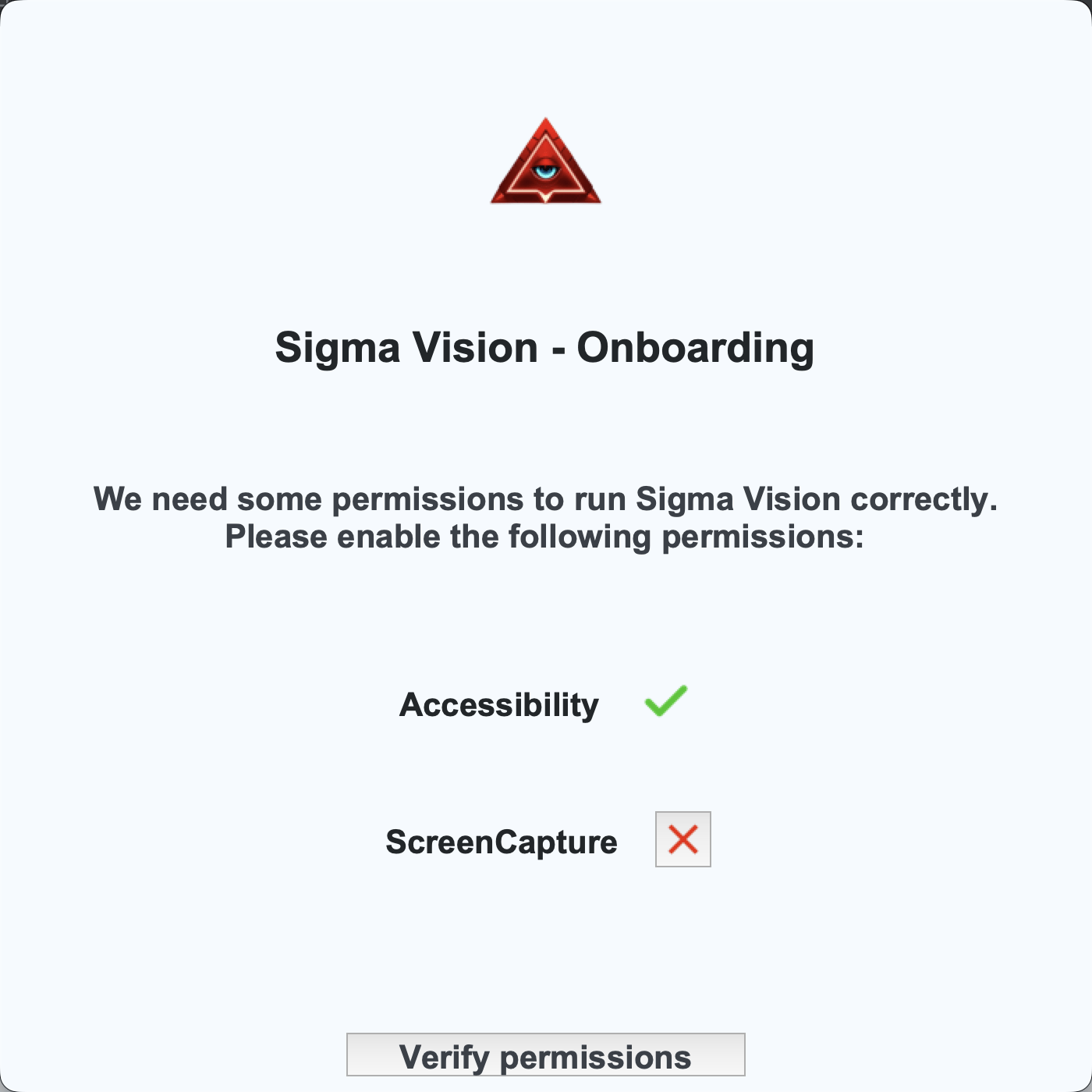
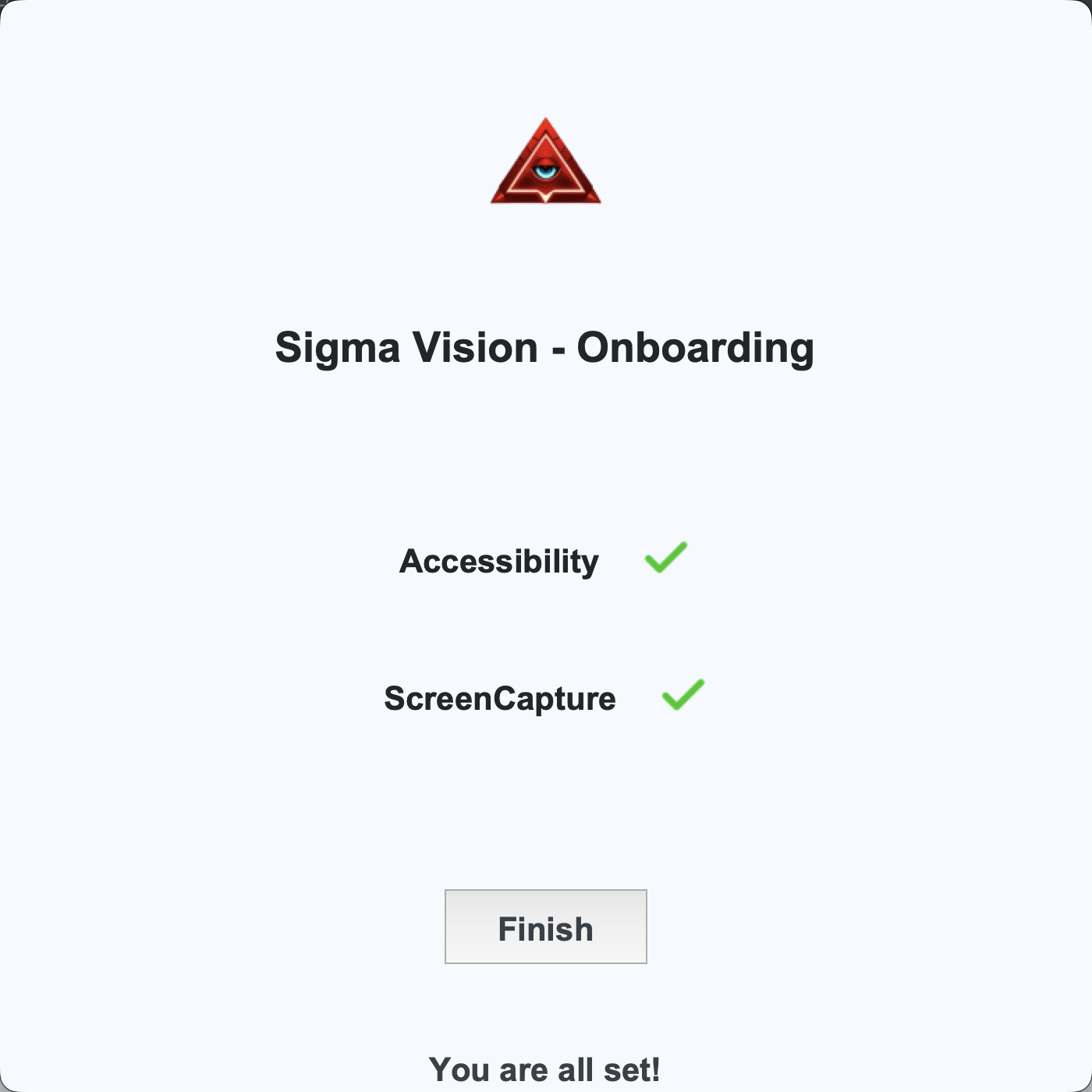
If onboarding reopens later, a macOS permission was turned off. Detection stays off until both are granted again.
Protection starts
At activation the app installs tamper-protection. macOS shows one more administrator prompt for that. Then it starts watching the screen.
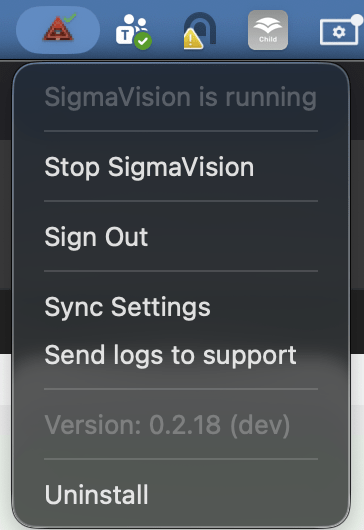
The menu bar or system tray should read SigmaVision is running.
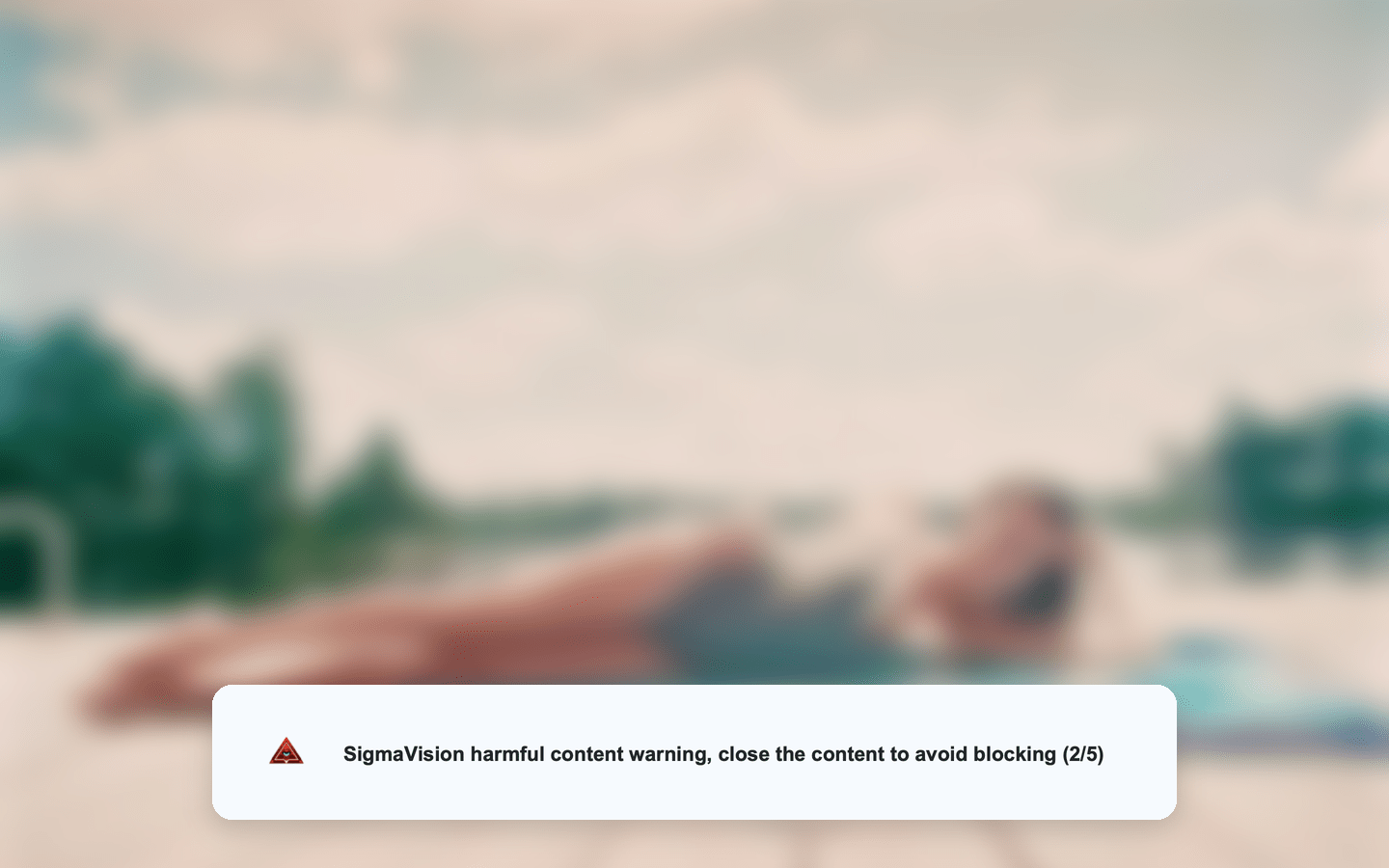
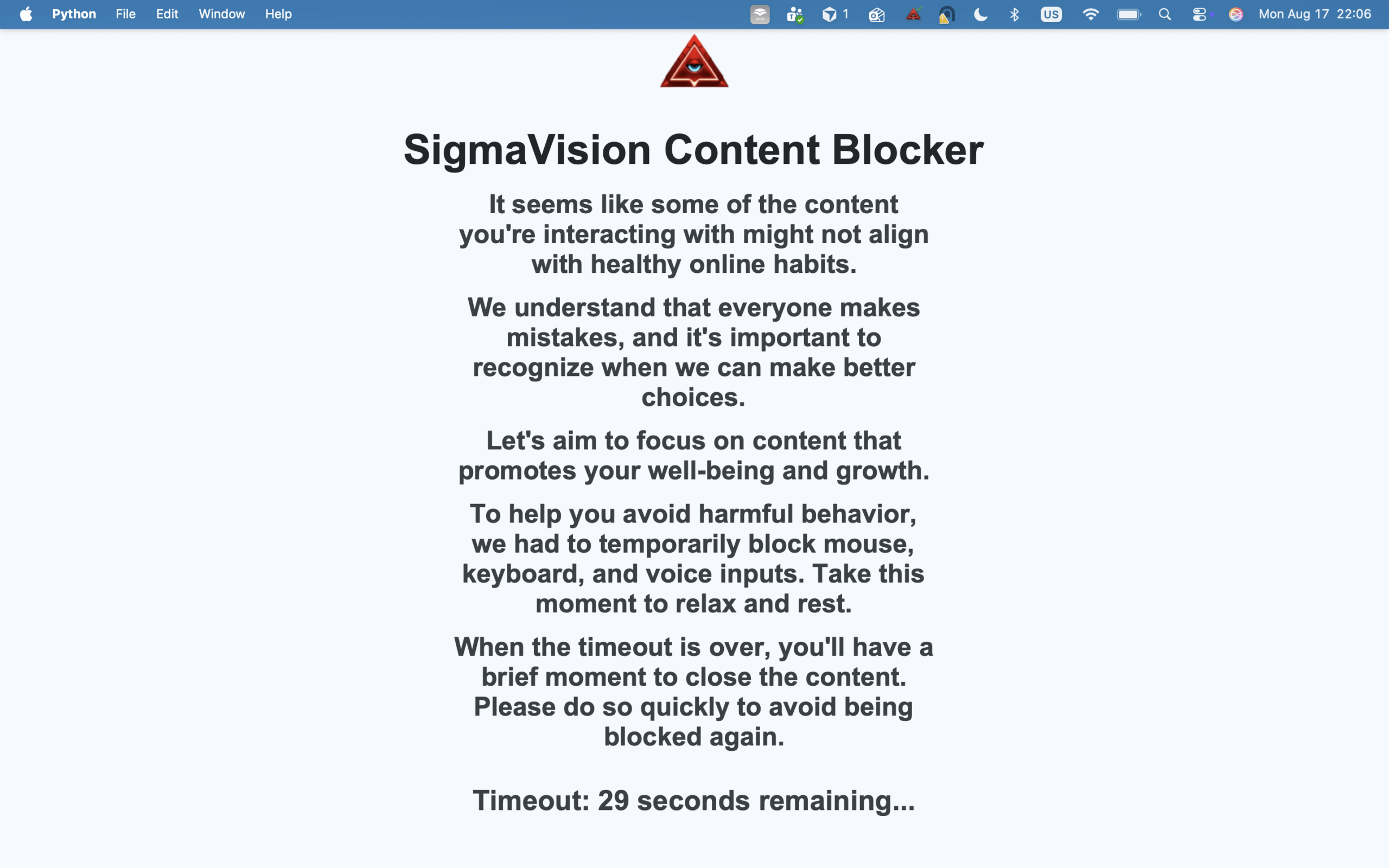
Harmful content gets a warning first. If warnings are ignored, the session can lock. That is configurable. Full explanation: how Sigma Vision works.
After activation (dashboard)
On the dashboard, pick the device to set how long a block lasts, how many warnings come first, the cool-down between blocks, and whether detections are emailed to you. Saving those changes asks for the device password from step 5.
Broader setup choices: how to block adult content on Windows and Mac. Compare tools: best adult content blockers for Windows and Mac (2026).
Frequently asked questions
Is install different on Windows and Mac?
Sign-in, plan, device password, and activation are the same. Mac also needs the first-launch admin password, onboarding permissions, and the tamper-protection admin prompt. Windows has no permission onboarding.
Does this work on iPhone or Android?
No. Sigma Vision is Windows and Mac only. More in the FAQ.
Why does Mac ask for an administrator password once or twice?
Those prompts install removal protection. One at first launch (start at login). One more when activation installs tamper-protection. Without them the app is easy to delete or stop, and protection dies. Approve them. Skip, and the app quits or runs unprotected.
The sign-in window came back right after I signed in
The app checks account, subscription, and a free device slot. An inactive plan, or a plan with every slot used, sends you back to sign-in. Free a slot or fix the plan, then Sign In again.
Why did I have to type a 6-digit code?
The usual path is automatic return from the browser. A code prompt means the browser refused to open the app. Use the code from the setup page or the email. It expires after 5 minutes. Do not reuse an old one.
Can the person being protected uninstall it?
The tray menu includes Uninstall. On a family computer, use a standard user account and a device password they do not know. Details: parental controls on a shared family computer.
Try Sigma Vision
Promo code TRYSIGMA: first month free until 30 September 2026, first 100 people. Plans from 3,99 €/month. Checkout: app.sigmaio.sk.